
Create Bulk Item Entries in Taxlink
Create many item masters at once from Excel: open the Items bulk upload screen, download the sample, fill it in, upload, review and edit rows, save, then push to Tally.
Before you start
- An active Taxlink subscription and a role with bulk upload access
- Microsoft Excel or another spreadsheet program
- Item details ready (name, unit, GST and stock settings as needed)
- Tally open with the right company and the Taxlink Connector running
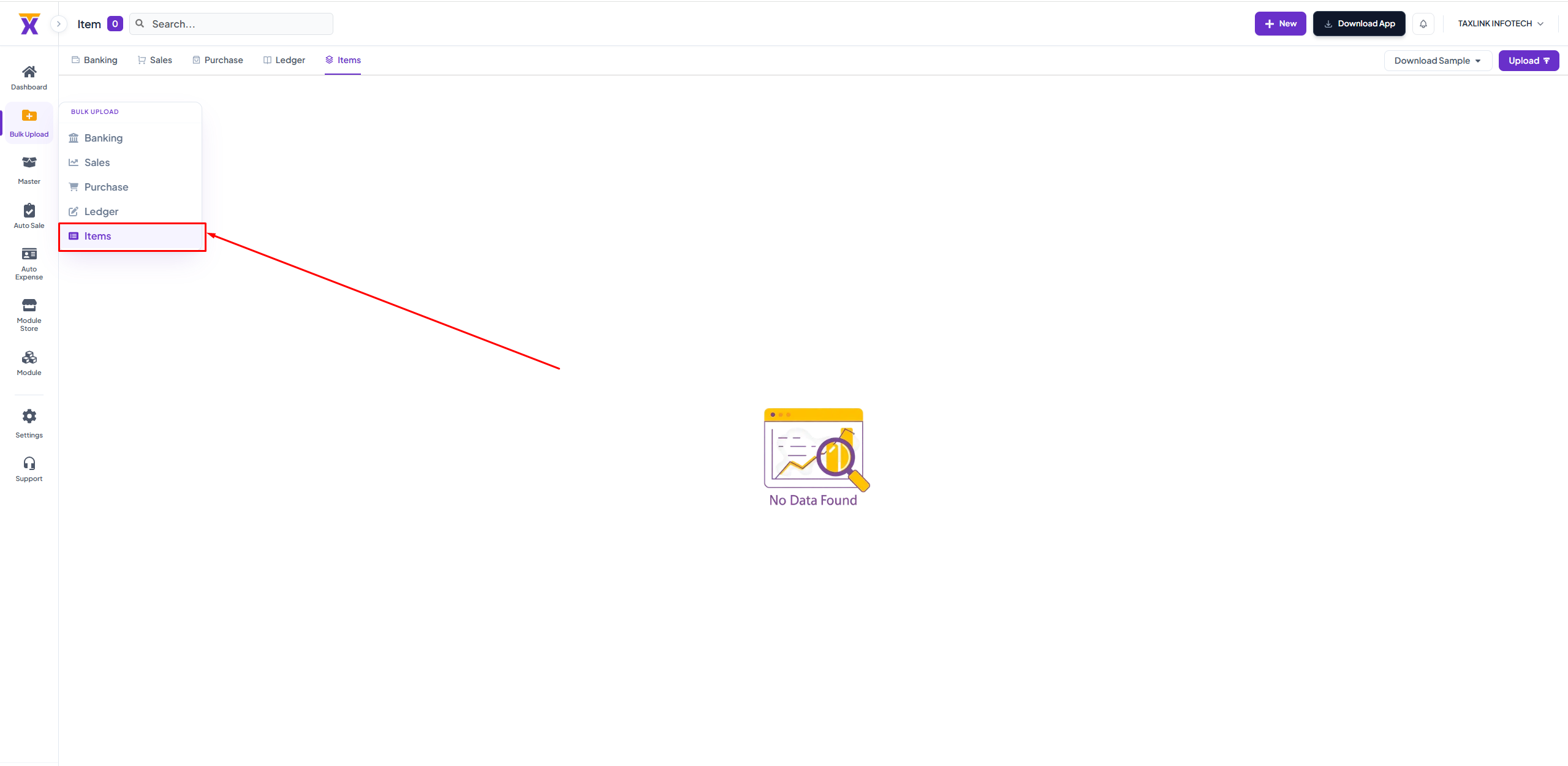
Step 1: Open Bulk Upload → Items
Open the item master upload screen.
- Log in to your Taxlink dashboard
- Click "Bulk Upload" in the left sidebar
- Select "Items"
Click the screenshot to open it full size. Step 2: Download the sample file
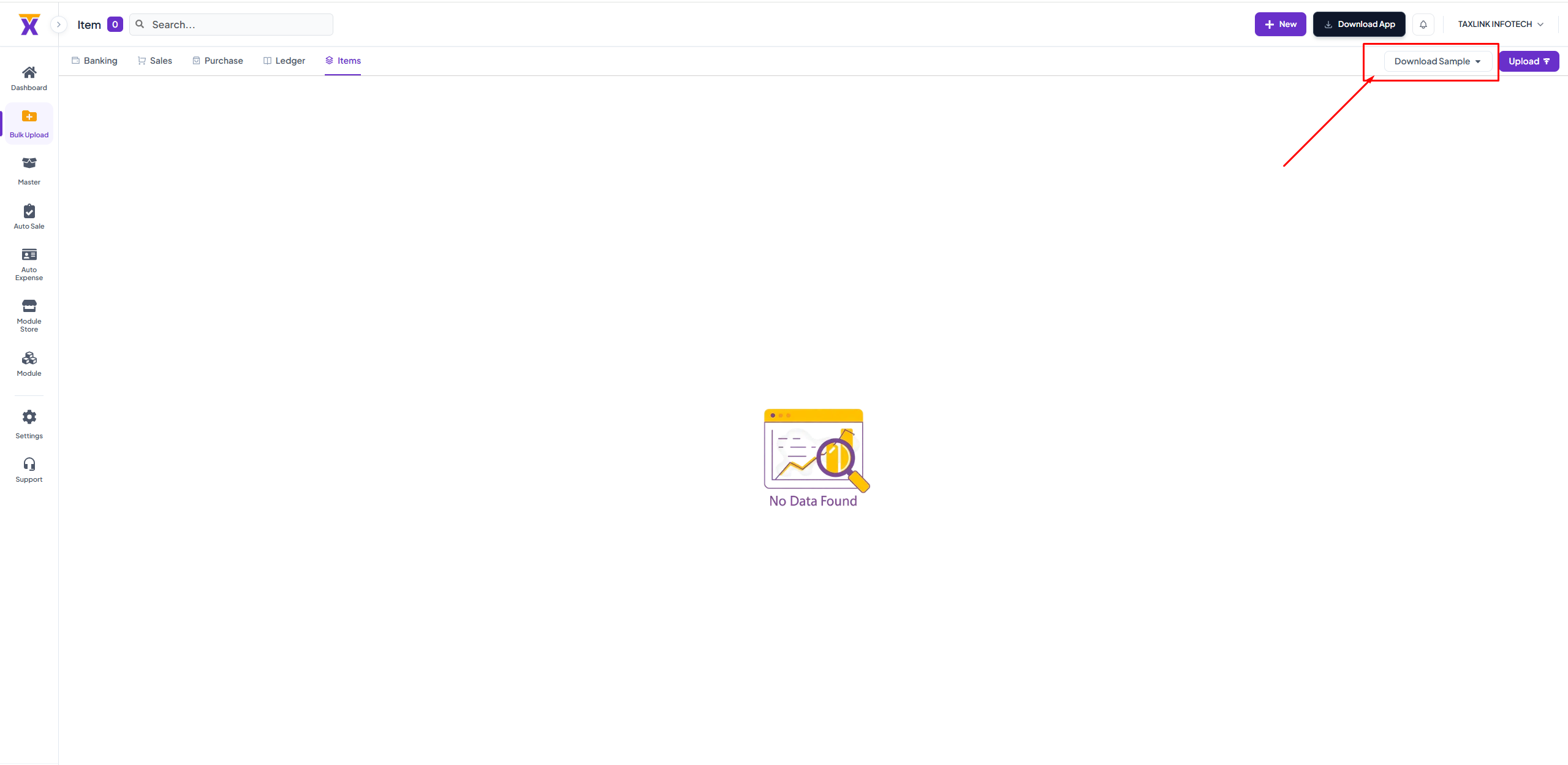
Download the sample template to see the required columns.
- Click "Download Sample Excel"
- Open it in Excel or Google Sheets
- Note the column headers and mandatory fields
Click the screenshot to open it full size. Step 3: Fill in the file
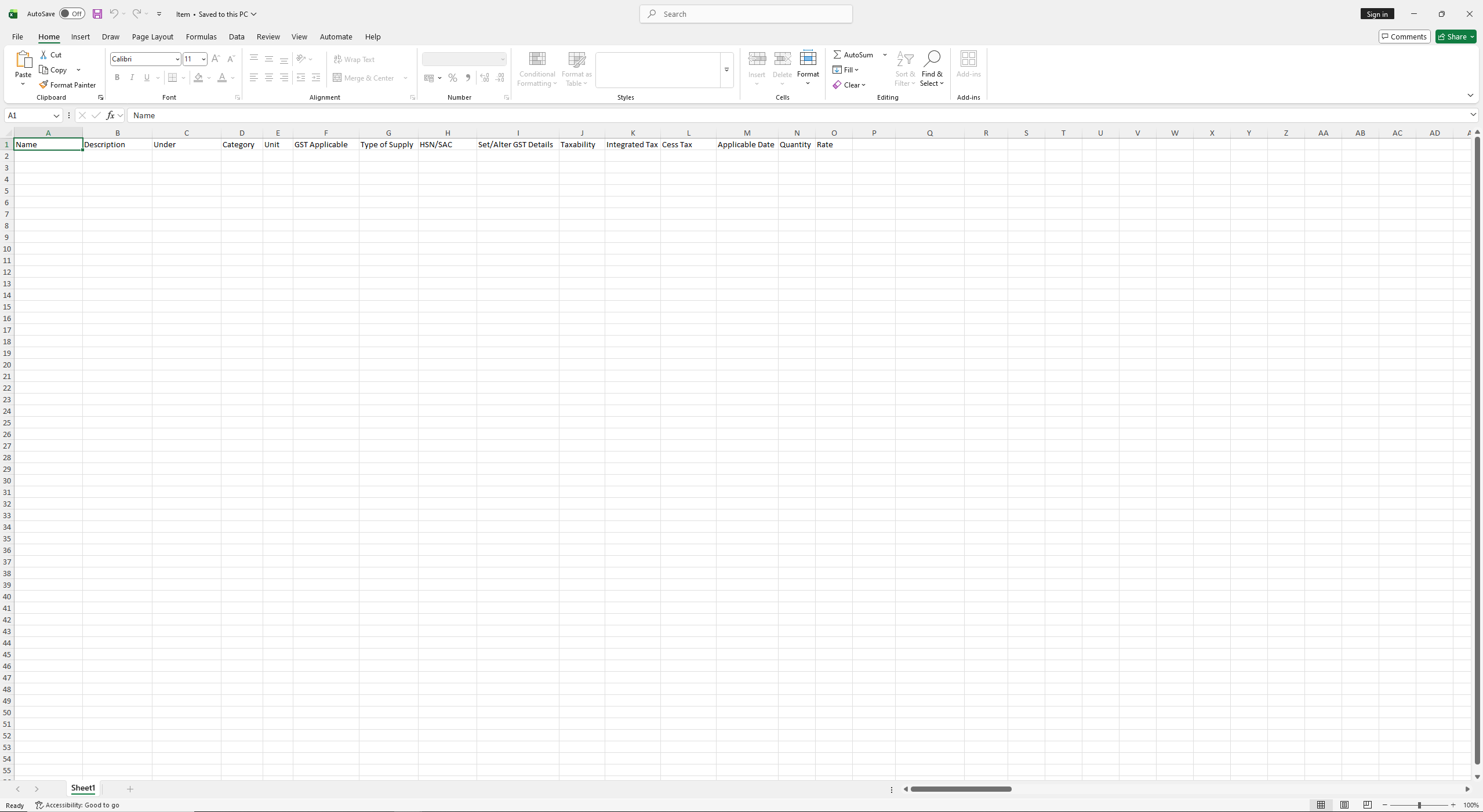
Add your item master data to the template.
- Item name, unit and stock group or category
- GST applicability, type of supply and tax rates if GST applies
- Opening balance or rate fields if your template includes them
- HSN/SAC codes where applicable
- Save the file with a clear name
Click the screenshot to open it full size. Step 4: Upload the file
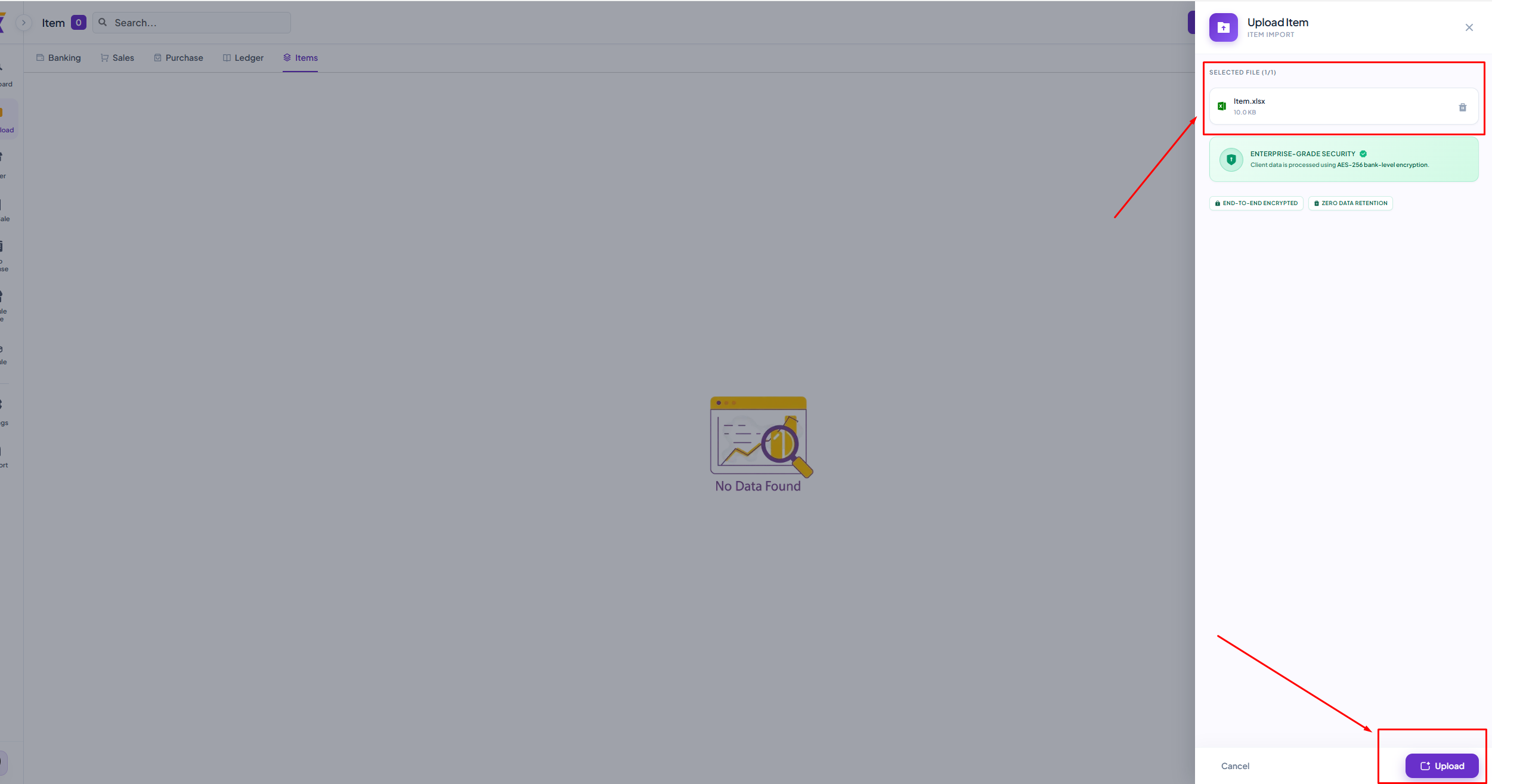
Upload your completed item sheet.
- Click "Upload"
- Select your Excel or CSV file
- Supported formats: .xlsx, .xls, .csv
- Wait for the upload confirmation
Click the screenshot to open it full size. Step 5: Review and edit if needed
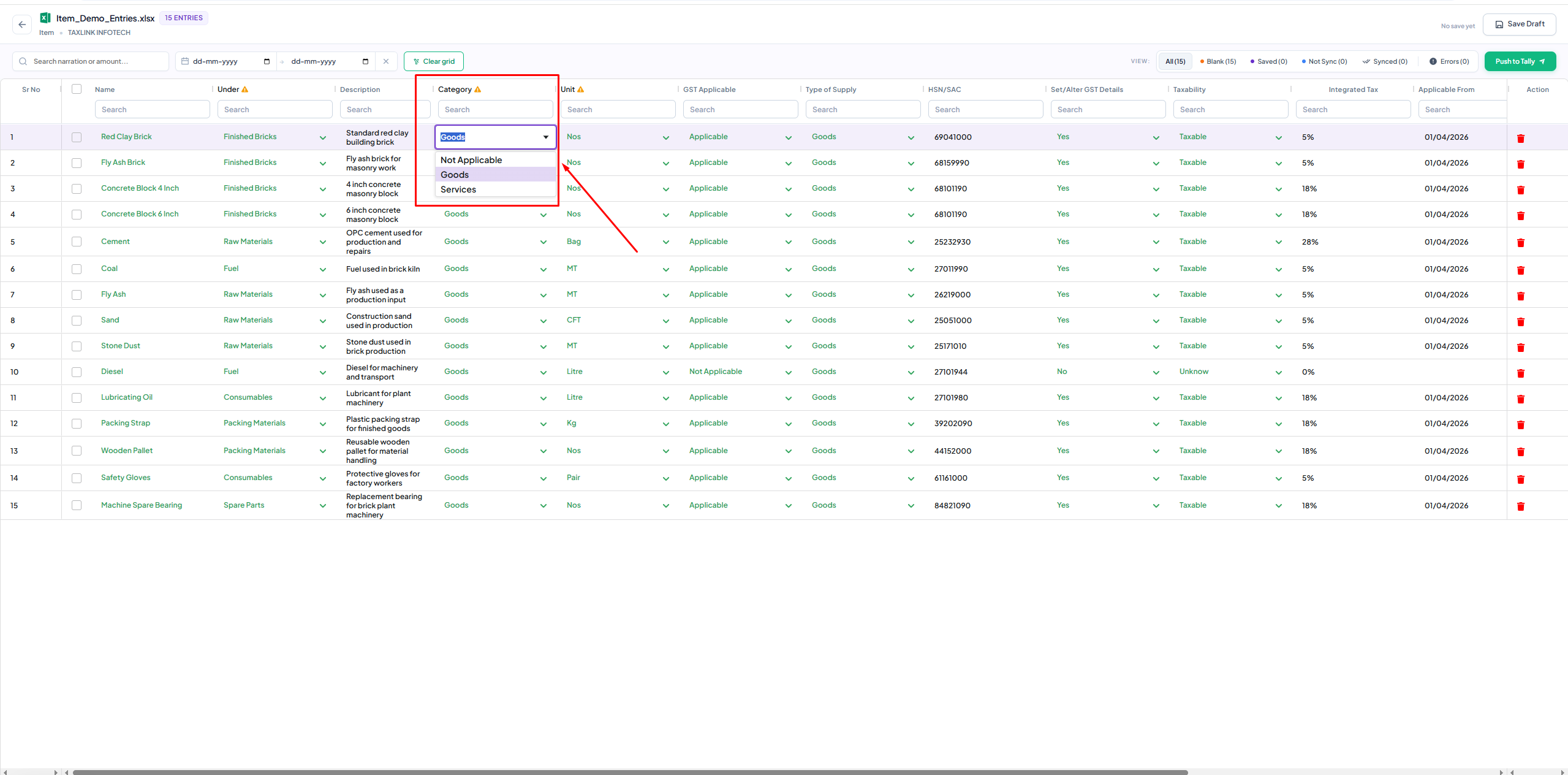
Check imported rows and fix any errors before you save.
- Review each item row in the grid
- Edit unit, category and GST dropdown fields if needed
- Fix validation messages or missing values
- Confirm item names match how you want them in Tally
Click the screenshot to open it full size. Step 6: Save
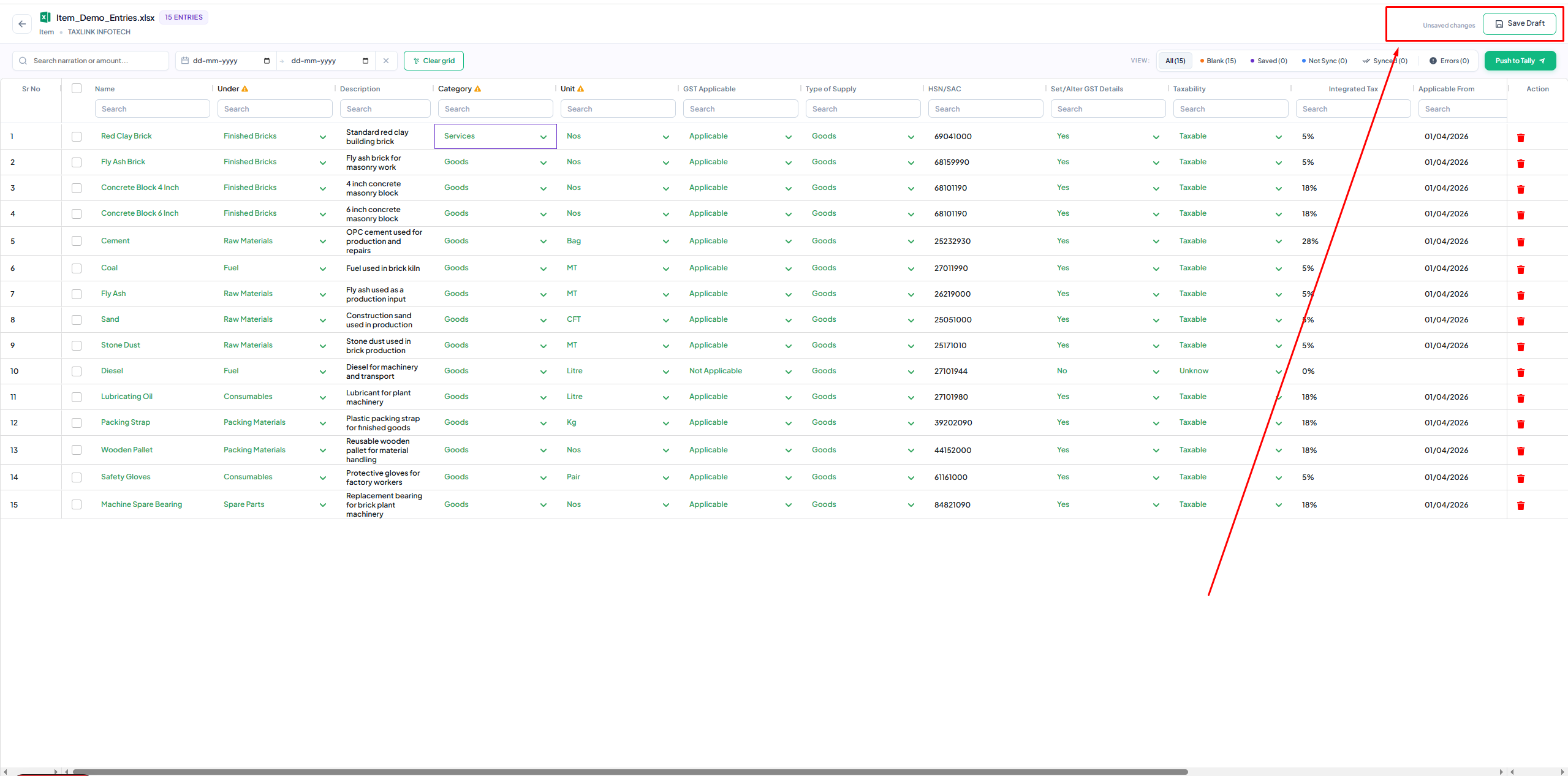
Save the item masters in Taxlink.
- Review all rows one last time
- Click "Save"
- Wait for the save confirmation
Click the screenshot to open it full size. Step 7: Push to Tally
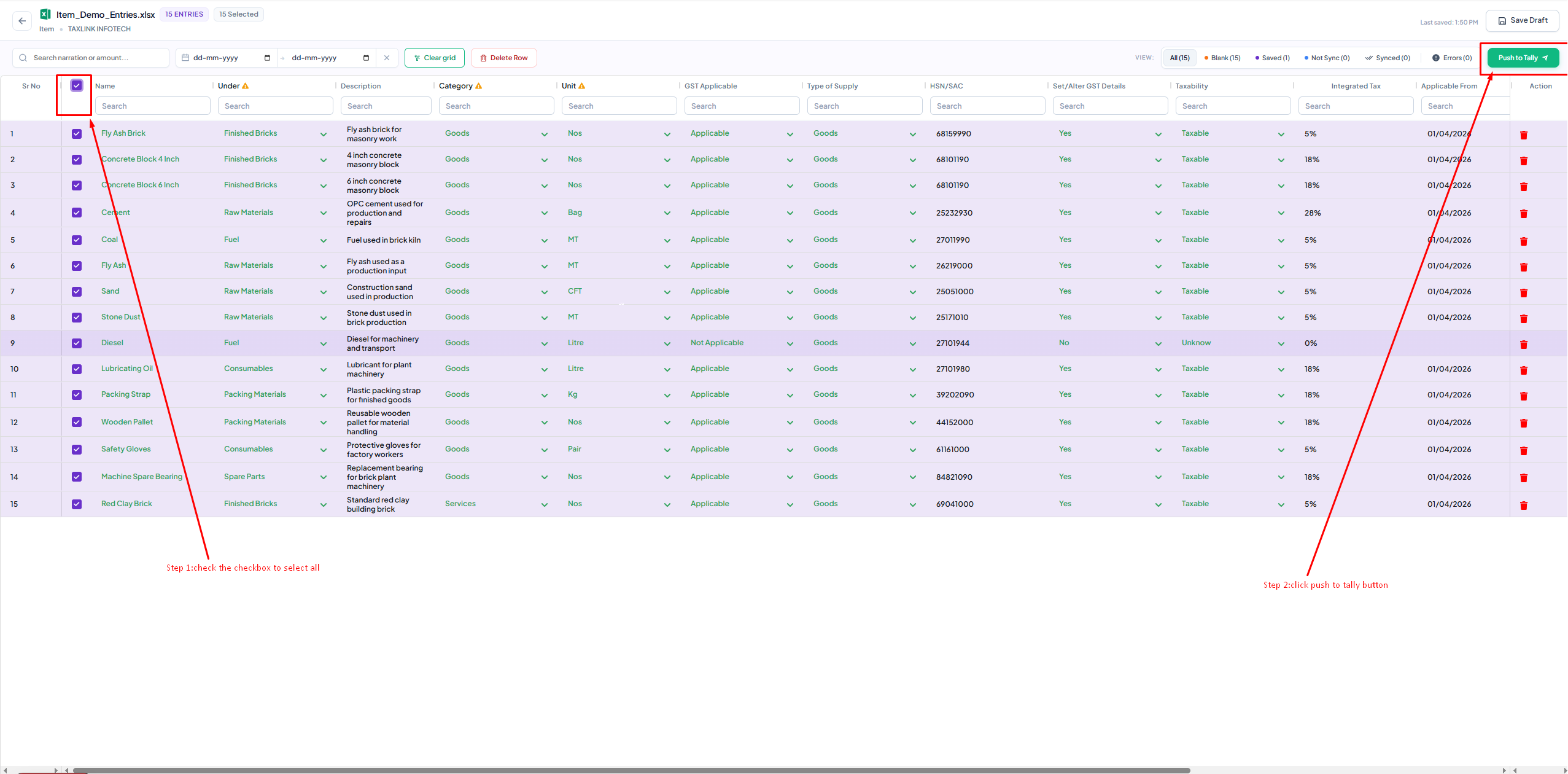
Send the saved item masters to Tally.
- Click "Push to Tally"
- Wait for the sync to finish
- Check the stock items in Tally
- Resolve any sync errors
Click the screenshot to open it full size.
Tips
Use the latest template
Download the sample file again before a new upload so the columns match.
Consistent units
Use the same unit names as in Tally to avoid duplicate units.
GST and HSN
Double-check GST rates and HSN/SAC codes before sending to Tally.
Still stuck?
Email support@taxlink.in or call +91 84848 48833 (Monday to Saturday, 9 AM – 6 PM IST).