
How to Select Voucher Name, Voucher Type, Ledger and Profit
After choosing the date range in AutoSale, you fill in the voucher details. This guide walks through each field.
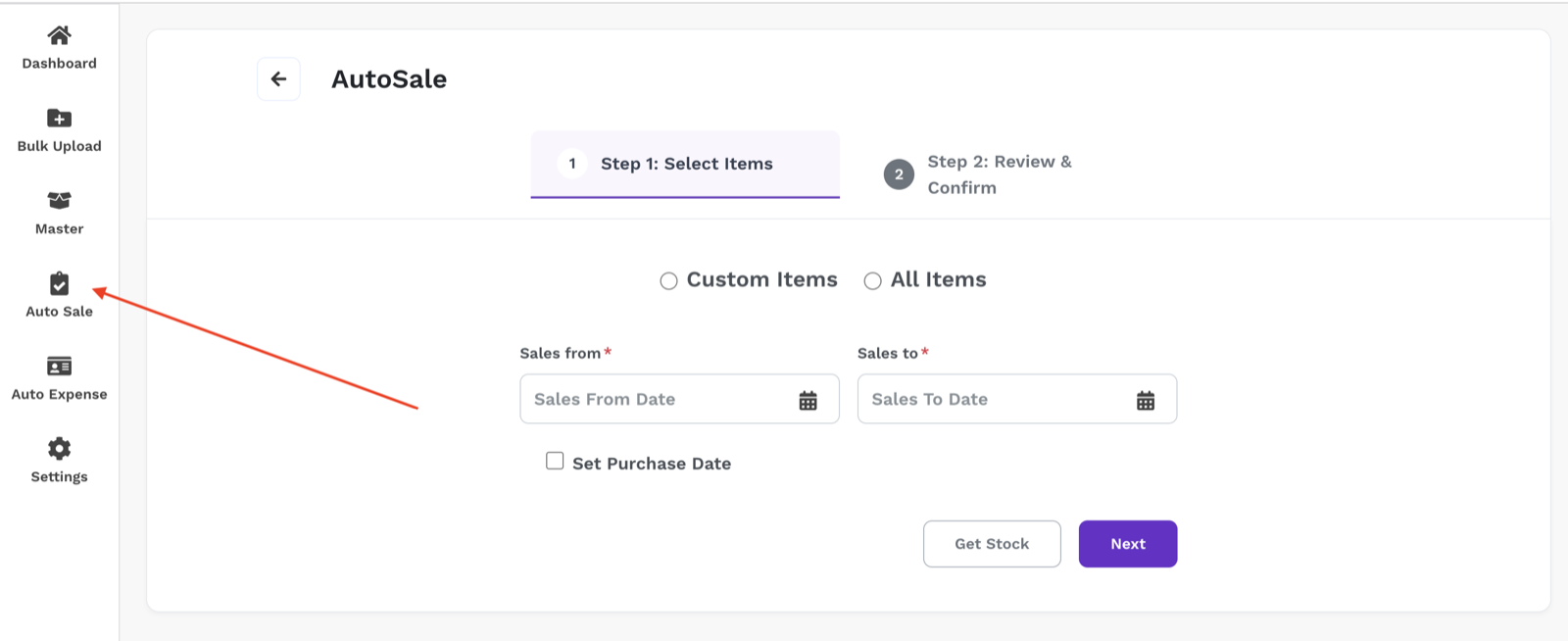
Step 1: Open the AutoSale module
Open AutoSale from your dashboard and start a new entry.
- Click "Auto Sale" in the left sidebar
- Click "Add Autosale"
- Wait for the form to load
Click the screenshot to open it full size. Step 2: Fill in Sales From and Sales To
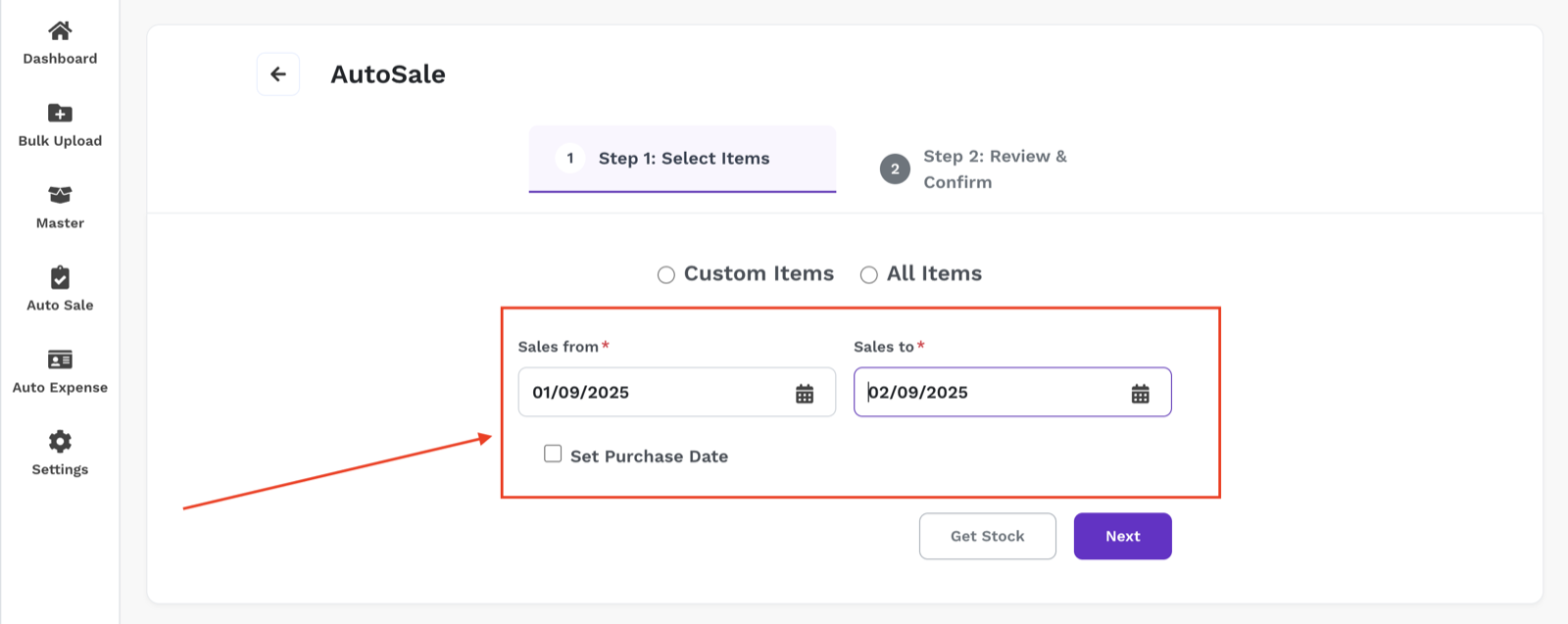
Set the date range for the sales.
- Enter or pick the Sales From date (DD/MM/YYYY)
- Enter or pick the Sales To date, on or after the start date
- Check both dates
Click the screenshot to open it full size. Step 3: Click Next
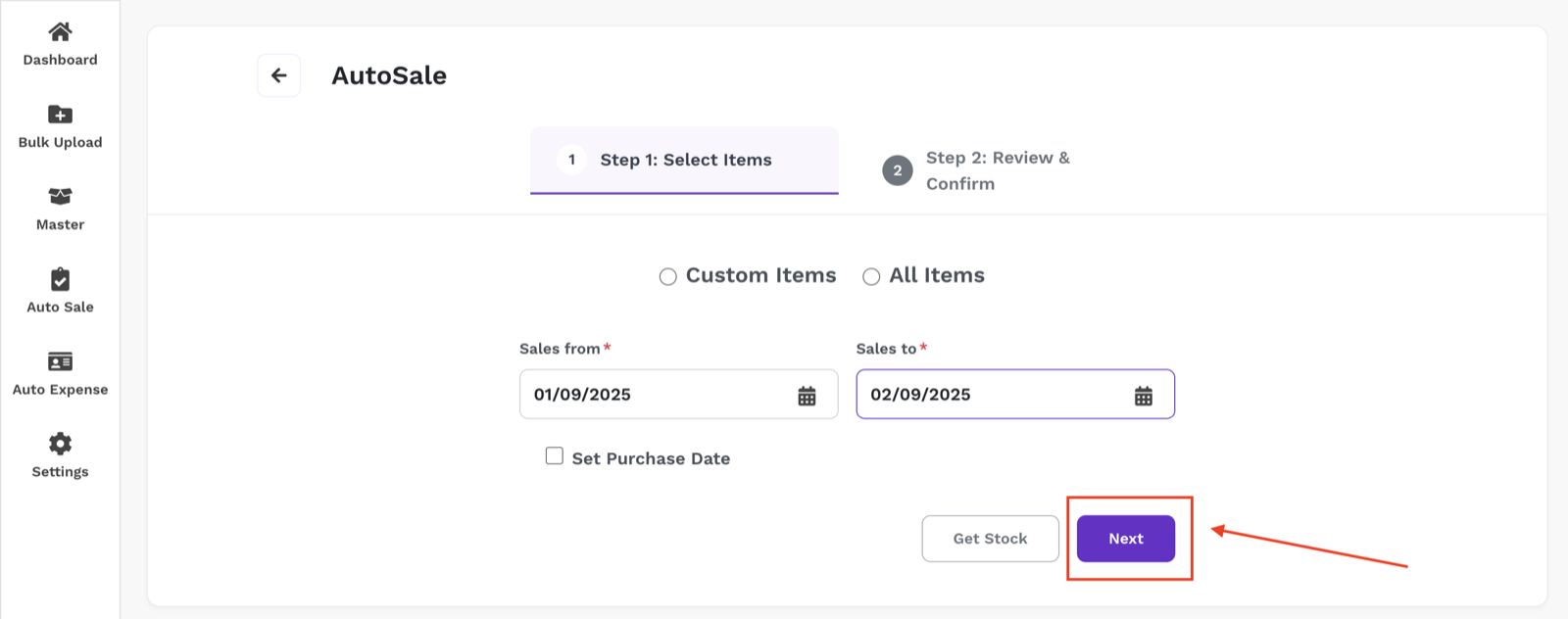
Continue to the voucher details.
- Check the date range
- Click the "Next" button
- The voucher detail fields appear
Click the screenshot to open it full size. Step 4: Fill in the voucher information
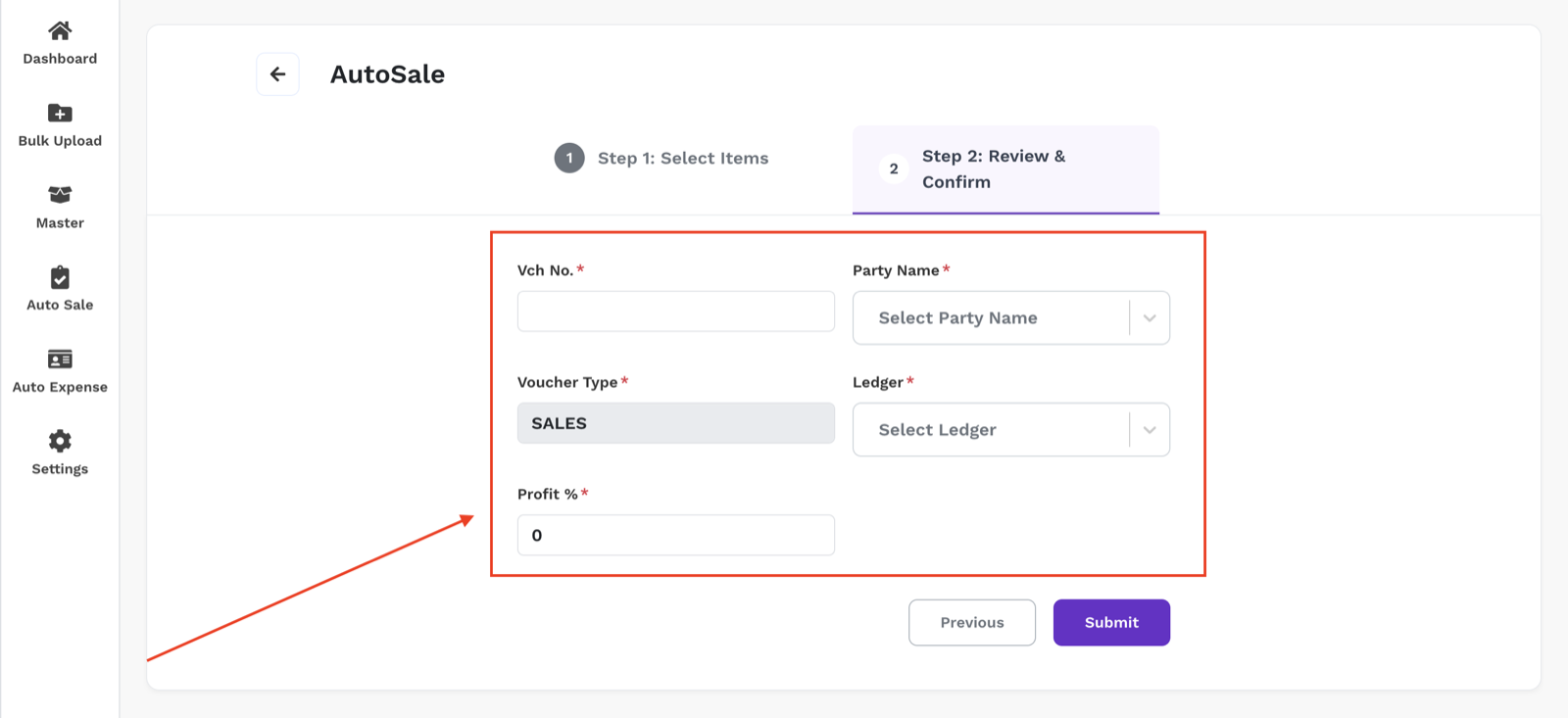
Complete voucher name, party name, voucher type, ledger and profit.
- Enter the Voucher Name
- Select the Party Name
- Select the Voucher Type from the dropdown
- Choose the Ledger
- Enter the Profit percentage or amount
- Make sure all mandatory fields are filled
Click the screenshot to open it full size. Step 5: Submit the form
Save the entry by clicking Submit.
- Review all voucher information
- Click "Submit"
- Wait for the confirmation message
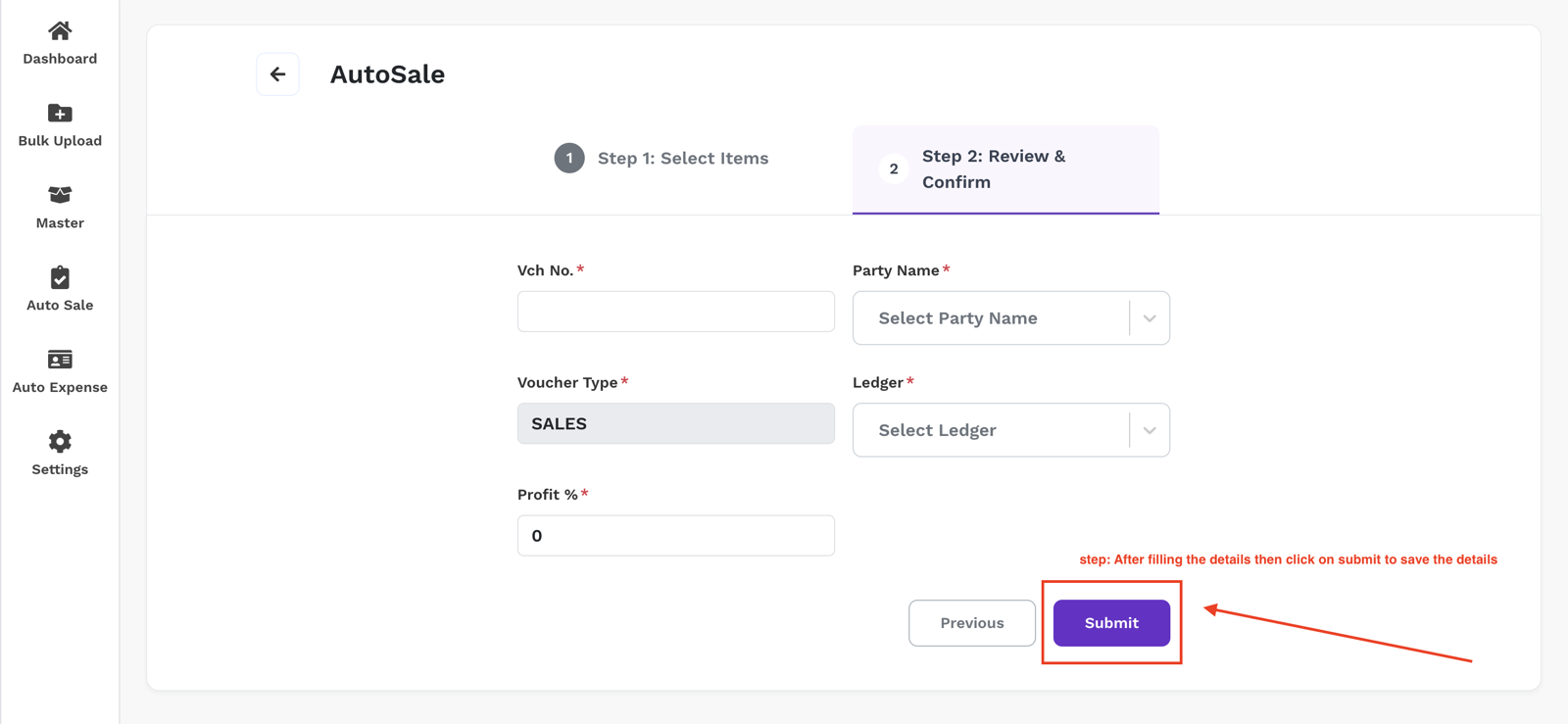
Click the screenshot to open it full size.
Voucher fields reference
| Field | What it is | Tip |
|---|---|---|
| Voucher Name | A name that identifies the voucher | Use a name that tells you what the entry is for |
| Party Name | The customer for the sale | Select an existing party or create a new one |
| Voucher Type | The Tally voucher type (for example Sales) | Choose the type that matches the transaction |
| Ledger | The ledger the entry is posted to | Make sure it matches your accounts in Tally |
| Profit | Profit margin for the entry | Enter a percentage or a fixed amount |
Tips
Check before submitting
Wrong voucher details flow into your books, so review them before you submit.
Follow the steps in order
Each step depends on the previous one, so complete them in sequence.
Still stuck?
Email support@taxlink.in or call +91 84848 48833 (Monday to Saturday, 9 AM – 6 PM IST).